Issuing Coupons
There are two ways to issue a coupon to your customer within OneBrick. You can set up Auto Iussed Coupons to issue a coupon once an order enters a specific status, or you can manually issue coupons from the Order View Page.
Automaic Issued Coupons
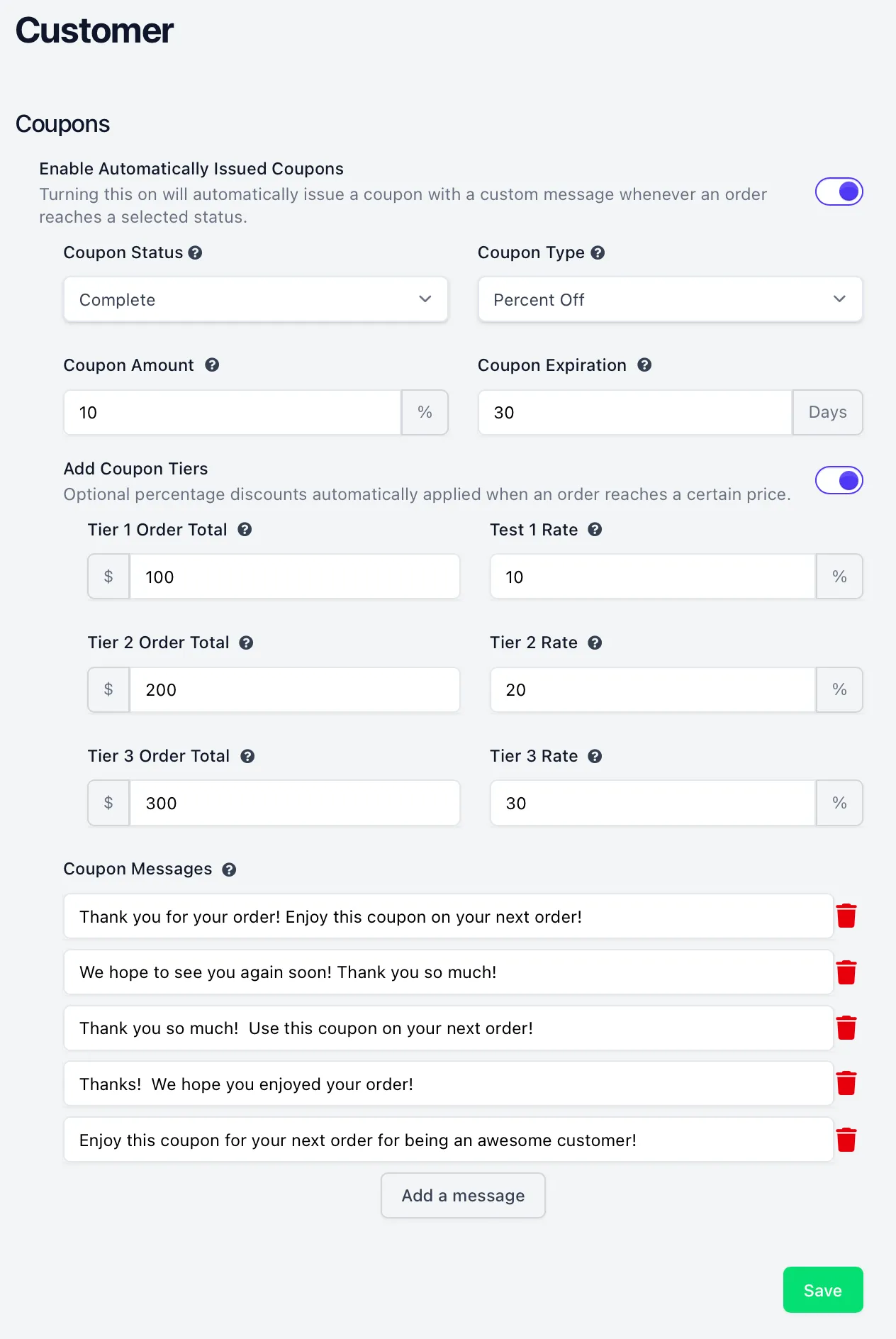
Automatic Issued Coupons can be set up in the Store Settings > Customer. Firstly, you must enable Automatically Issued Coupons. You than have a variety of options to select to finish setting up Automatically Issued Coupons.
Coupon Status
First is Coupon Status. This is the status that will trigger a coupon being issued to your customer for a particular order. You can select from "Shipped," "Received," or "Complete." If "Shipped" is selected, your coupon will be automatically issued when you mark the order as "Shipped" within OneBrick. If "Received" or "Complete" are selected, your coupon will be issued once the customer marks the order as Recieved or Complete on the selling platform.
Coupon Type
Next is Coupon Type. This is a simple toggle between a fixed dollar amount off an order or a percentage off an order. Only Percent Off Coupon Types will allow for Coupon Tiers.
Coupon Amount
The Coupon Amount is either the total dollar amount (if Fixed Amount is chosen in Coupon Type) or the percent off an order (if Percent Off is chosen in Coupon Type). You cannot exceed 99% for Coupon Amount when Percent Off is chosen in Coupon Type.
Coupon Expiration
The Coupon Expiration is the amount of days until the coupon expires. The maximum amount of days you can enter in to this field is 365 days.
Coupon Tiers
An optional value can be added to a coupon to encourage larger purchases. These are coupon tiers. You are able to set up to 3 tiers to increase the coupon amount for larger order totals. This section can only be used when Coupon Type is set to "Percent Off."
Coupon Messages
OneBrick allows for a variety of coupon messages to be used. This keeps reoccuring customers from getting the same exact coupon message over and over again. In the Coupon Message section, you can add a multiple messages. When a coupon is issued, OneBrick shuffles between the messages you have input. You must have at least one message to use Auto Issued Coupons.
To save your changes and enable Auto Issued coupons, click "Save" at the bottom of the page. Coupons will be auto issued upon order status changes which may take up to 24 hours to take effect in OneBrick depending on the status.
Manually Issued Coupons
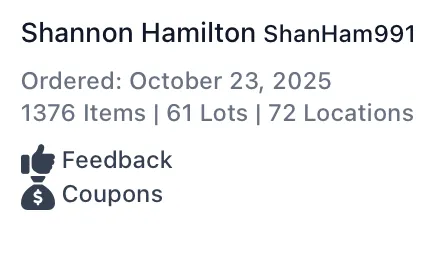
You can easily issue a one-time coupon to any customer from their order's Order View page. Click on the Coupons button at the top left under the customer Name, Username, and order information.
You will then be presented with a form to input the information for the coupon. The fields follow the same rules as above in the Automatic Issued Coupons section.
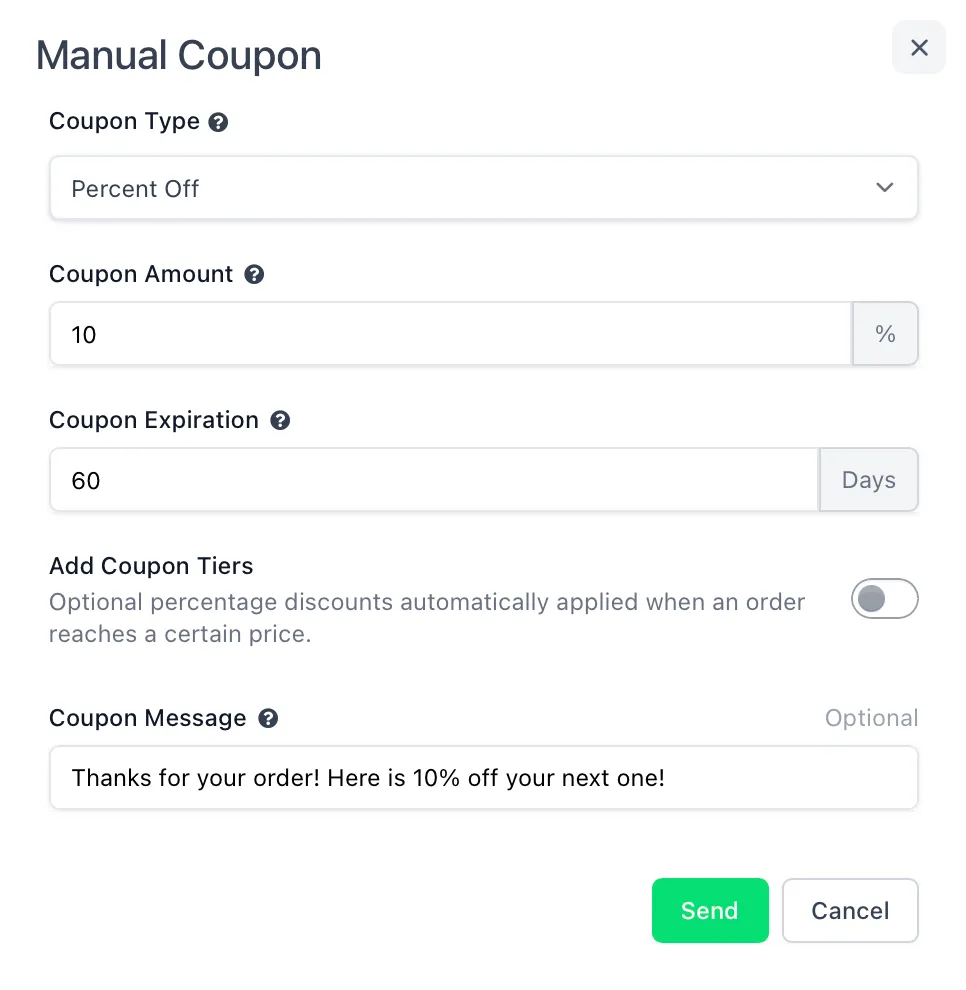
Clicking "Send" will instantly send that coupon to your customer and notify them on the selling platform.