Adding Items
There are two main methods of adding items within OneBrick. The main, and easiest way it by uploading a BSX file direcly to OneBrick. The second is by uploading items individually using the Add Item option on the Inventory Page.
Uploading Items via BSX Upload
Temporarily, we recommend only uploading .BSX files with a maximum of 200 lots to be sure the processing does not time out. Larger files may time out when loading the view page.
The easiest way to mass uplaod items into OneBrick is via the BSX Upload page.
Start by saving a Brickstore BSX file anywhere on your computer. Then click "Upload BSX" in the upper right of the page, or simply drag the BSX file into the table. OneBrick will then start to uplaod and process the file, which should only take a few seconds.
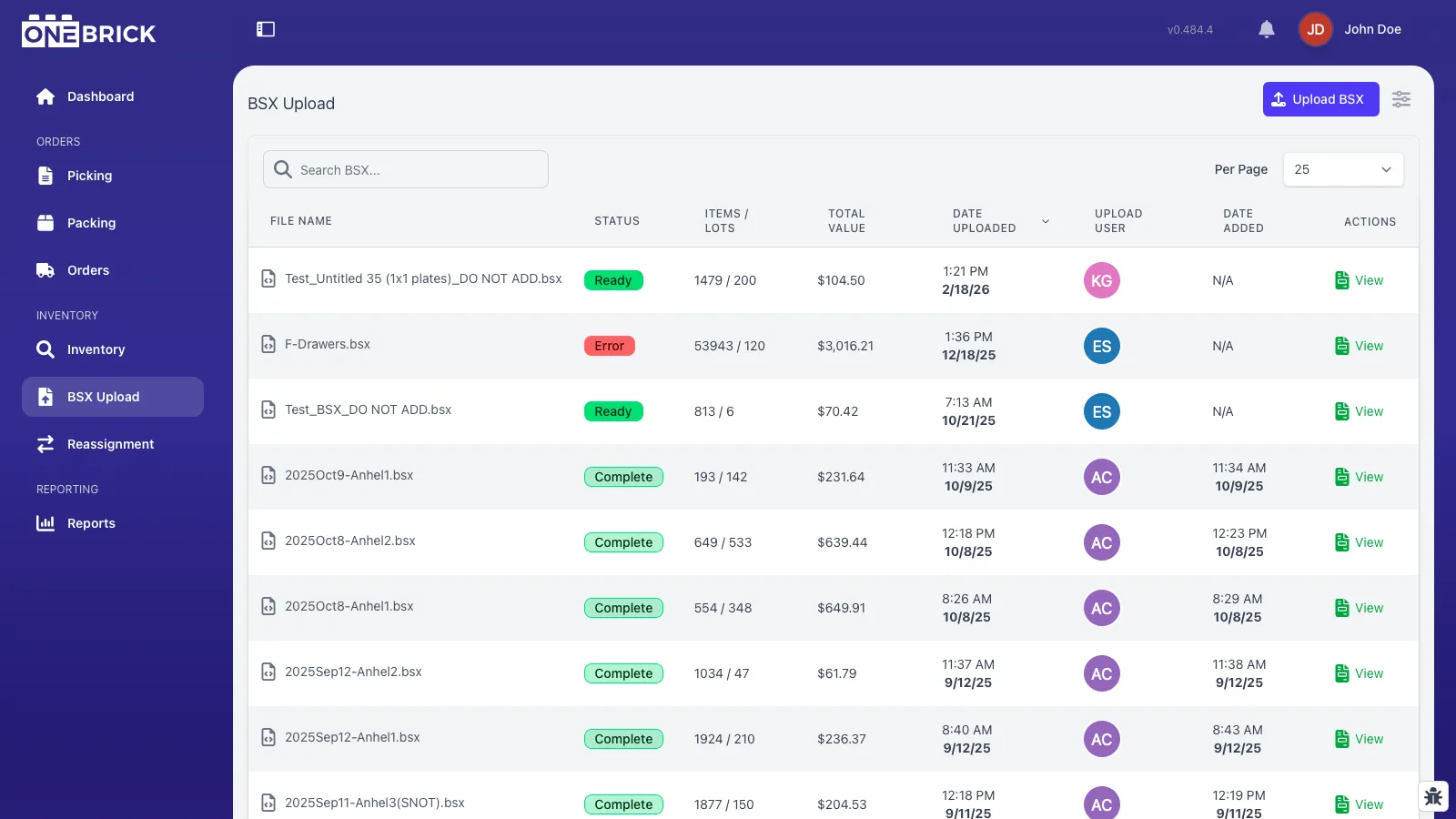
Within the file line item, you can view the File Name, Status, Item/Lot Counts, Total Value, Date Uploaded, Uploaded User and Date Added. Once the file is uploaded and processed, it's status will be set to "Ready" and you can click "View" on the far right of the line to enter the BSX file view.
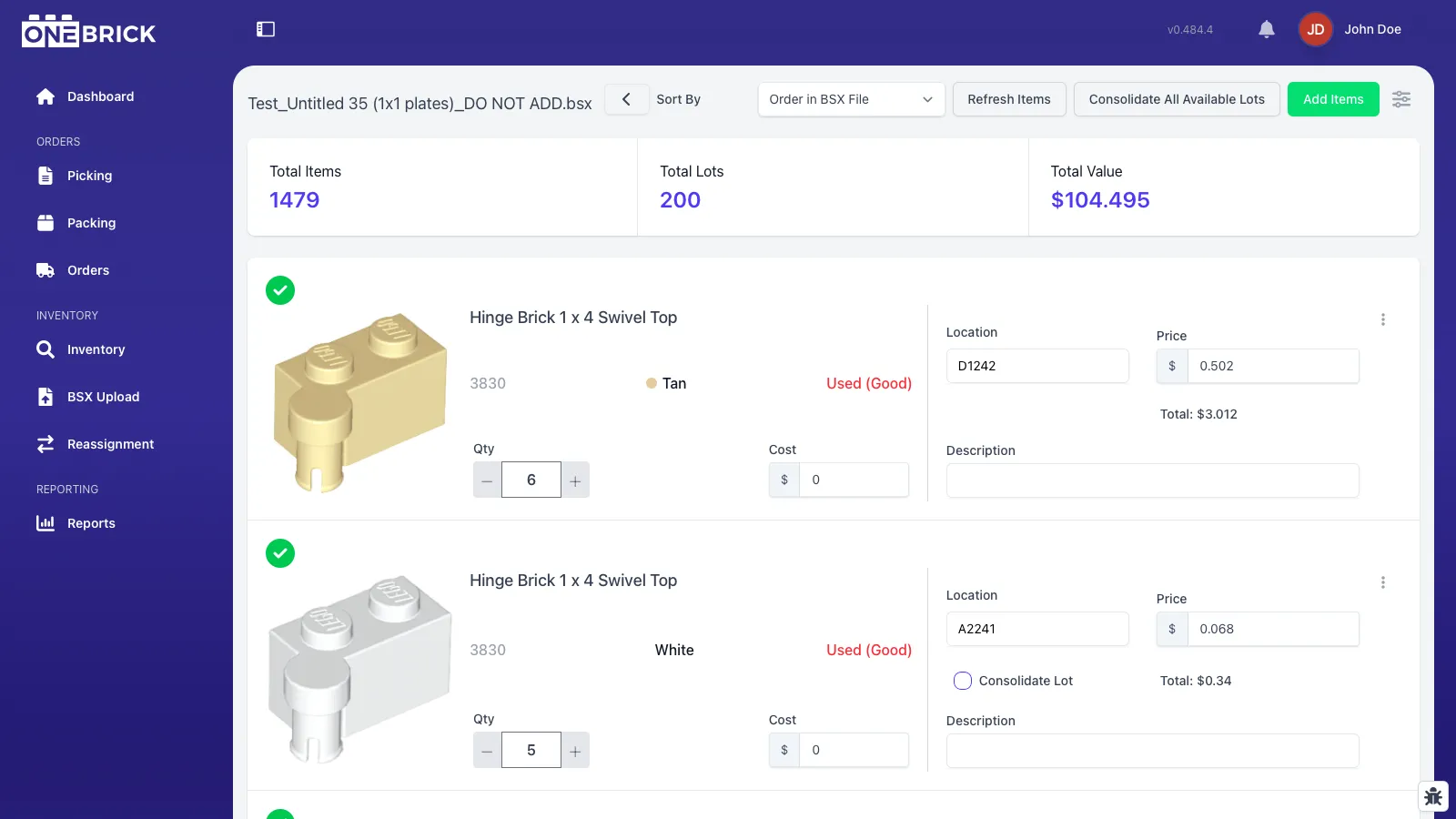
Within the BSX View page you can edit many attributes on each part such as Quanity, Cost, Location, Price and Description. You can also include or exclude items by clicking the green checkbox or red x on the left of the line item. Excluded items will not be added to your inventory when you add the BSX File. On the far right of the item, you can click a dropdown which will allow you to edit more pricing information, or add the item to a stockroom instead of your for-sale inventory.
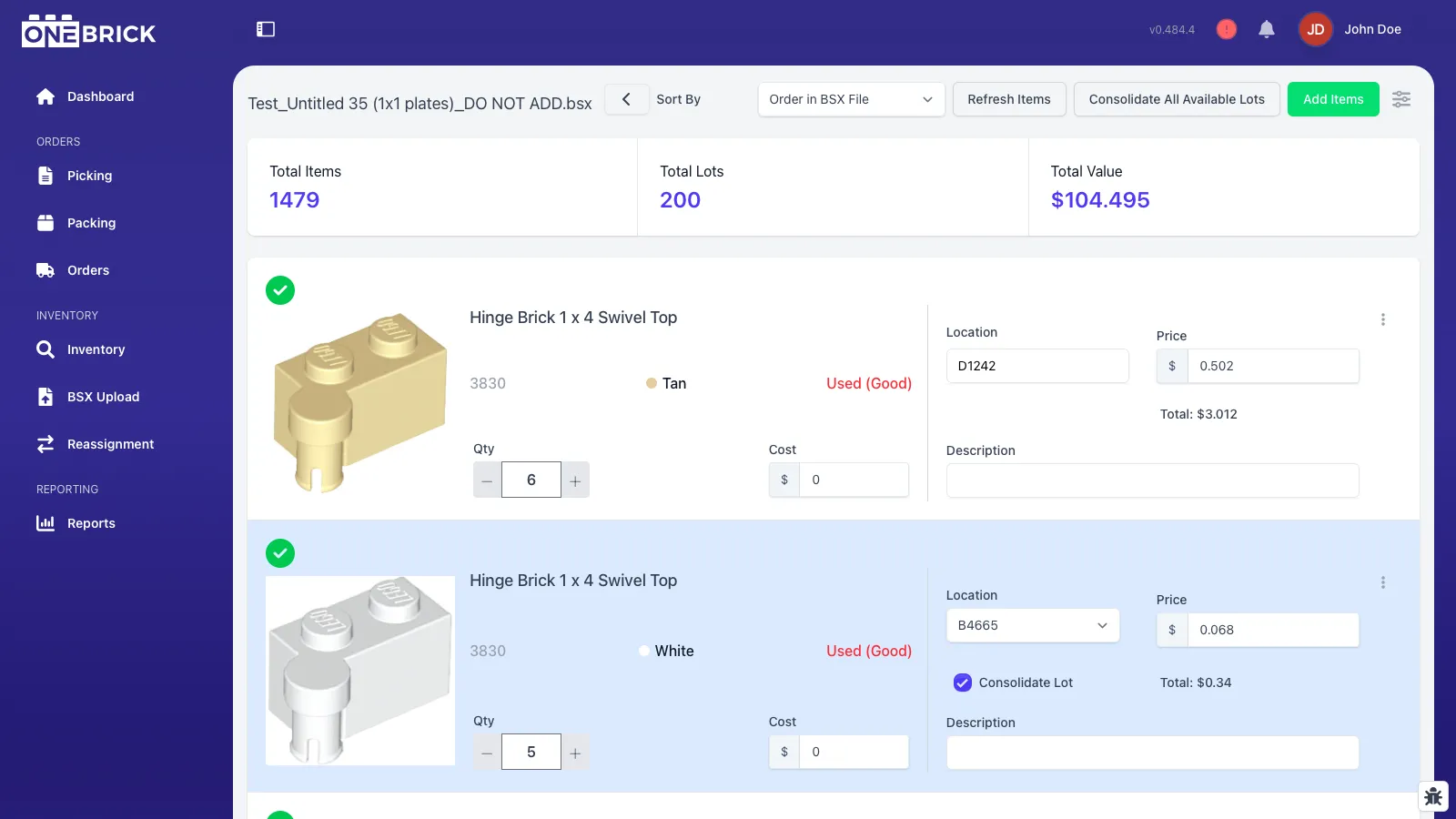
If you prefer to consolidate your inventory, OneBrick allows you to easily do that within this page. Click the "Consolidate All Available Lots" button near the top of the page. OneBrick will then highlight any items that can be consoldiated in blue and automatically input the location to consolidate that item.
You also have the option to consolidate items individually as you choose. On any lot you already have in your inventory, you will see a "Consolidate Lot" checkbox. Simply click the checkbox to set that lot for consolidation, and select your desired location from the lcoation dropdown to select where to put the part.
If you enter your file and have not yet added locations to all your parts, the process is super simple. When you enter a location in the field, all you have to do is click "enter" on your keybaord and your cursor will automatically jump to the next item's location field to enter in.
Locations can be empty, however you will get a warning when you add the items.
The default view within this page is to sort the file by the Order in BSX File option, however by using the dropdown, you can also sort by location, and also by consolidation, location.
To add the items in the file to your inventory, simply click "Add Items" at the top or the bottom of the page. OneBrick will process any changes you've made, then add the items to your inventory which will then sync to your selling platofmorms. Inventory syncs are performed every two minutes, meaning there could be up to a 2 minute delay between OneBrick and your selling platforms having a 1:1 inventory.
Prices and Quantity must be greater than 0.
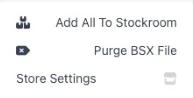
You cannot upload duplicate BSX file names. OneBrick will disallow this to prevent duplicate uploads. If you made a mistake when uploading an entire file, simply click into the file, click the three dots in the top right and click "Purge BSX File." The file will then be purged and you can upload the file again. This is the only instance of being able to uplaod a file with a duplicate name. Within this menu you can also add the entire file to a stockroom to deal with later.
Adding Items Individually via Inventory Page
When creating a whole BSX file for an individual part feels like too much work, you can simply add an individual part by clicking "Add Item" on the Inventory Page.
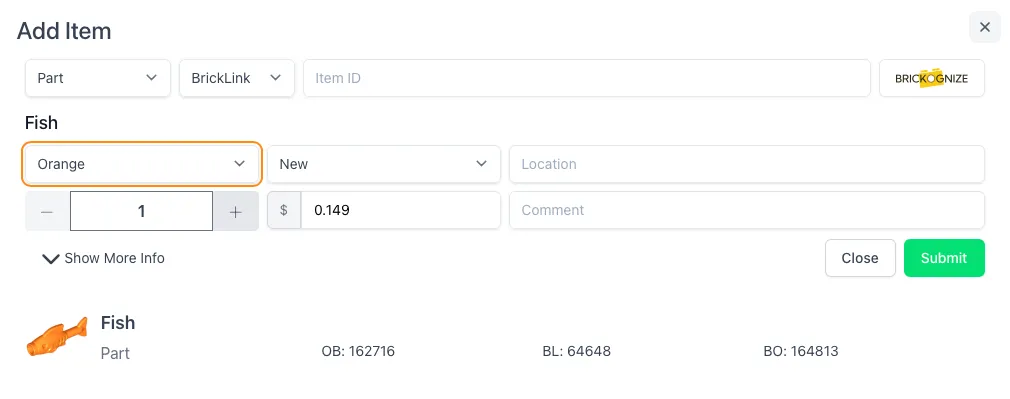
Once in the Add Item modal, you first need to select a category and platform ID signifier. You can then search by an item ID. If you do not know the Item ID, you can click the Brickognize button and allow access to your camera which will then use Brickognize to search for and recommend an item for the image.
Select the item you want from the list below, then input the item color, condition, add a location, quantity, and price, as well as an optional comment on the part. Then click "Submit" to add the item to your inventory.